
This $13/month Clawd Setup Beats Your Mac Mini.
This is the Easiest and Cheapest Way To Set up Clawd and Get Opus 4.5 like results without a Claude Code Subscription

Let me say this right in the beginning,
You Don’t Need a Mac Mini for Runnin Clawd 24x7
I’m not surprised to see people rushing to buy a Mac Mini to run clawdbot
That’s just normal herd behaviour, deeply embedded in our DNA.
Someone posts a setup, others copy it without asking the most important question first:
Do I actually need it ?
What are my requirements?
Before buying hardware for your AI Assistant, you need to decide:
Do you really need a machine running 24x7 at home?
Are you okay with electricity costs, heat and maintenance?
Do you want to manage updates, crashes, power cuts, and downtime?
Or…
Do you just need reliable compute to run your Clawd powered AI assistant, automations and workflows?
Because those are two very different problems.
Even clawdbot Team is trying to tell you to not give your money to Apple for no reason.

The simple truth
Yes, a Mac Mini works (for some).
But for most people, cloud compute makes way more sense.
And it’s cheaper. Much much cheaper.
My actual setup
(spoiler: it’s boring and powerful)
Here’s what I use.
1. Compute: Cloud VM (not my laptop)
I use a free Oracle Cloud VM:
~24 GB RAM
36 GB Storage
Quad Core CPU
Oracle Linux OS
Ampere ARM64 based Hardware
Runs 24x7
Zero electricity or maintenance cost on my side
It’s honestly a beast.
If you have a credit card, you can also get this beast from here at NO COST: Oracle Cloud Signup
Or just ask ChatGPT, it will guide you.
If setting up Oracle feels difficult, there are plenty of alternatives:
AWS EC2 free tier
Google Cloud free VM
Paid but cheap options like: Hetzner, Vultr, Hostinger
These all options are great and reliable.
Most of these offer pay-per-use with very low monthly pricing like 6$ a month.
You don’t “own” the machine.
You rent compute, which is exactly what Clawd needs.
2. AI Model: GLM-4.7 (this is my only cost)
I use GLM-4.7 from z.ai(@Zai_org)
Why?
As per the benchmarks,
It competes with Claude Opus 4.5 models
Better than GPT-5.2 for coding
Works perfectly with Claude Code/Cursor/ Any IDE
Costs $8 per quarter for LITE Plan
That’s $2.66 per month for 3 times Claude Code Pro limits.
I am personally using 40$ pro plan, which costs me $13.33/Month and gives 15 times Claude Code Pro limits, faster speeds and MCP support.


Just FYI, This is literally my only recurring cost.
Referral link if you want to try GLM4.7 Open-source model:
https://z.ai/subscribe?ic=A8IPKOMRSG
3. Orchestrator: Clawd.bot (free & open source)
Clawd.bot is open source.
Which means it’s free and you can use it anywhere you want.
Just install and run it.
So what’s actually happening here?
Your VM is the machine
GLM-4.7 is the brain
Claude Code is the interface
Clawd.bot is the agent orchestrator
Your laptop or phone is just a controller
This is why you don’t need a Mac Mini.
Now let’s go through the steps on how to setup your Clawd AI Assistant with no manual work, just follow along, copy and paste the prompts to your AI agent and let it setup everything for you.
Step by step setup (noob friendly)
I’ll assume:
You already have a Linux VM (Oracle, AWS, Hetzner, whatever)
You have SSH access (IP + key)
Step 1: Install Cursor (optional but recommended)
Download Cursor on your local machine if you like a nice UI:
https://cursor.com/
This is optional.
Everything also works fully from the terminal.
Step 2: Install Claude Code
On macOS or Linux (Windows not supported here), Run this command in terminal:
curl -fsSL https://claude.ai/install.sh | bashThat’s it. Claude Code is installed.
For Windows users:
You can either use Claude Desktop or use Cursor’s free/paid plan and follow the next steps directly from the Cursor chat.
Step 3: Connect GLM-4.7 to Claude Code (recommended method)
We’ll use the official z.ai script, which is the easiest.
Run this:
curl -O "https://cdn.bigmodel.cn/install/claude_code_zai_env.sh" && bash ./claude_code_zai_env.shDocs (for reference):
https://docs.z.ai/devpack/tool/claude
What this script does automatically:
Configures Claude Code to use GLM-4.7
Updates ~/.claude/settings.json
You do not need to edit anything manually.
There are other ways to setup GLM4.7 in Claude Code . But this is the method I recommend.
For Windows users:
You can either use Claude Desktop, or set up your GLM API key directly inside Cursor (see the docs).
Alternatively, you can even use Cursor’s free/paid plan and follow the next steps directly from the Cursor chat.
Step 4: Start Claude Code
Open the terminal in cursor and enter this command to run claude:
claudeIf prompted:
“Do you want to use this API key?” → Yes
Allow file access → Yes
Now you are running Claude Code/Cursor IDE with GLM4.7.
Step 5: Give Claude/Cursor access to your VM
From your local machine, just give this prompt to Claude or Cursor Chat:
Prompt (Provide your IP and SSH Key/Password) :
I have a Linux VM running on Oracle Cloud.
Here is the IP and SSH key.
Please connect and help me set up Clawd.bot step by step.
Claude will guide you or ask for permission where needed.
Step 6: Ask Claude/Cursor to install Clawd.bot on your VM
At this point, Claude/Cursor is already connected to your VM via SSH.
Now instead of manually setting up Clawd Assistant, just give this prompt to your local AI (Claude/Cursor)
Prompt:
Install Clawd.bot on this VM using the official installation command.
Use the following command:
curl -fsSL https://clawd.bot/install.sh | bash
Follow the official documentation at
 https://docs.clawd.bot/start/getting-started
Verify that Clawd is installed correctly and tell me once it’s running.
Claude will:
Run the clawd install command on the VM
Check for errors
Confirm Clawd is installed and ready
Once Claude/Cursor confirms, Clawd is installed.
Step 7: Connect Clawd to GLM-4.7
Now that Clawd is installed, we need to plug in the AI model.
Go to z.ai and generate a GLM-4.7 API key
Copy the key and keep it ready
Again, Instead of manually editing multiple config files, just ask Claude/Cursor to wire everything up.
Prompt (replace the API key):
Configure Clawd on this VPS to use GLM-4.7 (ZhipuAI) as the primary model.Use:
Provider: zai
Model: zai/glm-4.7
Base URL: https://open.bigmodel.cn/api/paas/v4
GLM API Key:
YOUR_GLM_API_KEY_HERE
Update all required Clawd configuration files, start the gateway using PM2 so it runs persistently, and confirm once Clawd is responding using GLM-4.7.
That’s it.
Your Clawd AI Assistent has been setup and is now:
Powered by GLM-4.7
Running 24x7 on your VPS
Ready for channels like Telegram (next step)
Step 8: Ask Claude to set up Telegram control for Clawd
This is where Clawd Assistant becomes actually useful.
You’ll be able to control it directly from a Telegram bot.
First, create a Telegram bot (2 minutes)
Open Telegram and search for @BotFather
Send: /start
Send: /newbot
Give your bot:
A name (anything you like)
A username (must end with bot, like myclawdbot)BotFather will give you a Bot Token
(looks like 123456789:AA...)
Copy this token. You’ll need it next.
Now let your local AI handle the setup on your VM, Just give Claude/Cursor the token and let it do the rest.
Prompt (replace the token):
I want to control Clawd via Telegram.
My Telegram Bot Token is:
YOUR_TELEGRAM_BOT_TOKEN_HERE
Please follow the official documentation at: https://docs.clawd.bot/channels/telegramDo the following:
Configure Clawd on this VM to use Telegram
Add the bot token correctly
Run any required commands or config updates
Verify that Telegram control is working
Once done, confirm that I can send commands to Clawd from Telegram.
Claude will:
Update Clawd’s configuration on the VM
Ask for confirmation if needed
Restart or reload services if required
Verify that Telegram commands work end to end
Once Claude confirms setup, you can send commands directly from Telegram and clawd responds in real time.
Step 9: Ask Claude to install Clawd Integrations and skills from ClawdHub
Now you start extending Clawd’s capabilities. Again, you don’t have to do anything manually, just search for the integration/skill you want, copy the URL, provide it to your AI and it will do the setup for you.
Go to Clawd’s Native Integrations page (Link Here) and you will see plenty of options to install. Just click on whatever capability you want to add to your Agent, copy the URL and provide it to your AI and ask it to set it up for you.
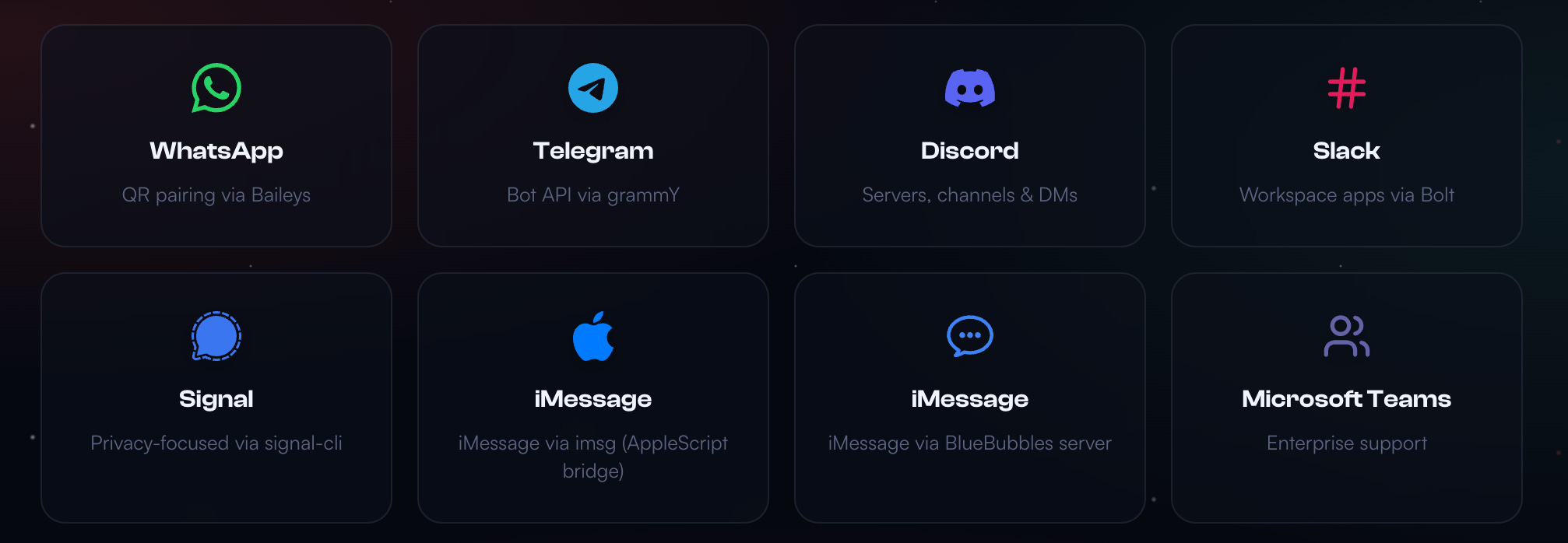
Along with native integrations, there is a Clawdhub, from where you can download and install multiple skills created by the community.
Go to: ClawdHub
Sort by downloads and pick what you need.
Example: Brave Search
https://clawdhub.com/steipete/brave-search
Instead of installing it manually, just tell Claude exactly what to install.
Prompt to Claude:
Install the Brave Search integration from ClawdHub on this VM.
Use the ClawdHub source from:
 https://clawdhub.com/steipete/brave-search
Configure it properly for Clawd, enable it, and confirm that it’s working.
Claude will automatically read, fetch and install the skill for your assistant.
You can repeat this step for any Integration/Skill on ClawdHub.
My setup summary
Cloud VM: Free / cheap
Model: GLM-4.7 ($13.33/month)
Clawd.bot: Free
Hardware at home: None
So… should you still buy a Mac Mini?
Buying a Mac Mini is not wrong.
But it should be a decision, not a default.
Ask yourself:
Do I really need local hardware?
Do I want to manage a machine 24x7?
Or do I just want Clawd to work reliably?
For me, the answer was obvious.
Cloud compute + Clawd + GLM-4.7
$13.33 per month.
No hardware. No maintenance.
Final takeaway
You don’t need a Mac Mini.
You don’t even need a laptop.
You just need compute.
And once you understand that, everything becomes simpler.
Here’s my previous Article you might wanna read to be prepare for future and build tools that can last.
